The AI era has genuinely democratized technology, and it may be the one era in which you can hold the initiative in your own hands — in the past, “building your own password manager” was a luxury reserved for a few engineers; now, it can be your answer.
In recent years, I’ve grown increasingly impatient with “subscription models.” It’s not that the subscription model itself is the problem — it’s that when nearly every tool wants to scrape a layer off my wallet monthly or yearly, I instinctively ask myself: is this really something I can’t handle on my own?
And the answer is usually: yes, I can.
The “Anti-Subscription” Journey That Started with a Clipboard Tool
The first thing that got me thinking was clipboard tools. I used Paste before, and it really was comfortable — cross-device sync, history, search, all done well. But watching it change from a one-time purchase to a subscription left a bad taste in my mouth.
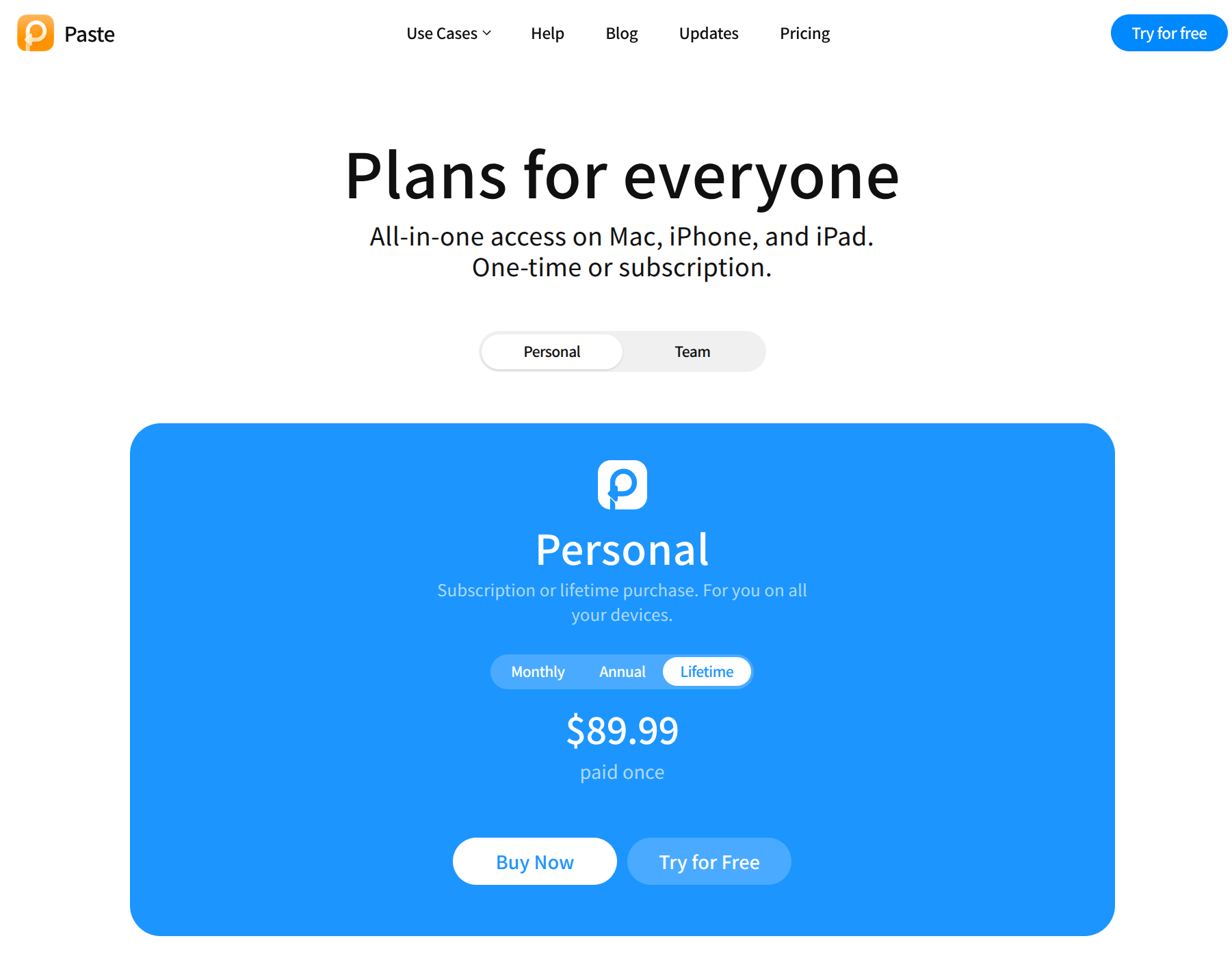
Here’s its current pricing page: the personal edition still keeps a “lifetime” option, but what’s being pushed is already Monthly / Annual:
A clipboard history, at its core, is just storing some text snippets locally and syncing them, right? So I simply wrote my own open-source version: good enough, free, and the data is mine.
After that, I became completely desensitized to the idea that “personal tools must come with a subscription.”
The Password Manager Was My Last Paid Stronghold
With the clipboard settled, the next target was naturally the password manager.
I used to be a paying 1Password user. Its cross-platform sync was excellent, the vault logic was clear, and the browser extension was stable. But ever since generation 7 went all-in on subscriptions, my goodwill has declined year by year. For data as extremely sensitive as passwords — I pay you every year, and I also have to hand over part of the trust in the master-key system to you — the more I thought about it, the more uncomfortable it felt.
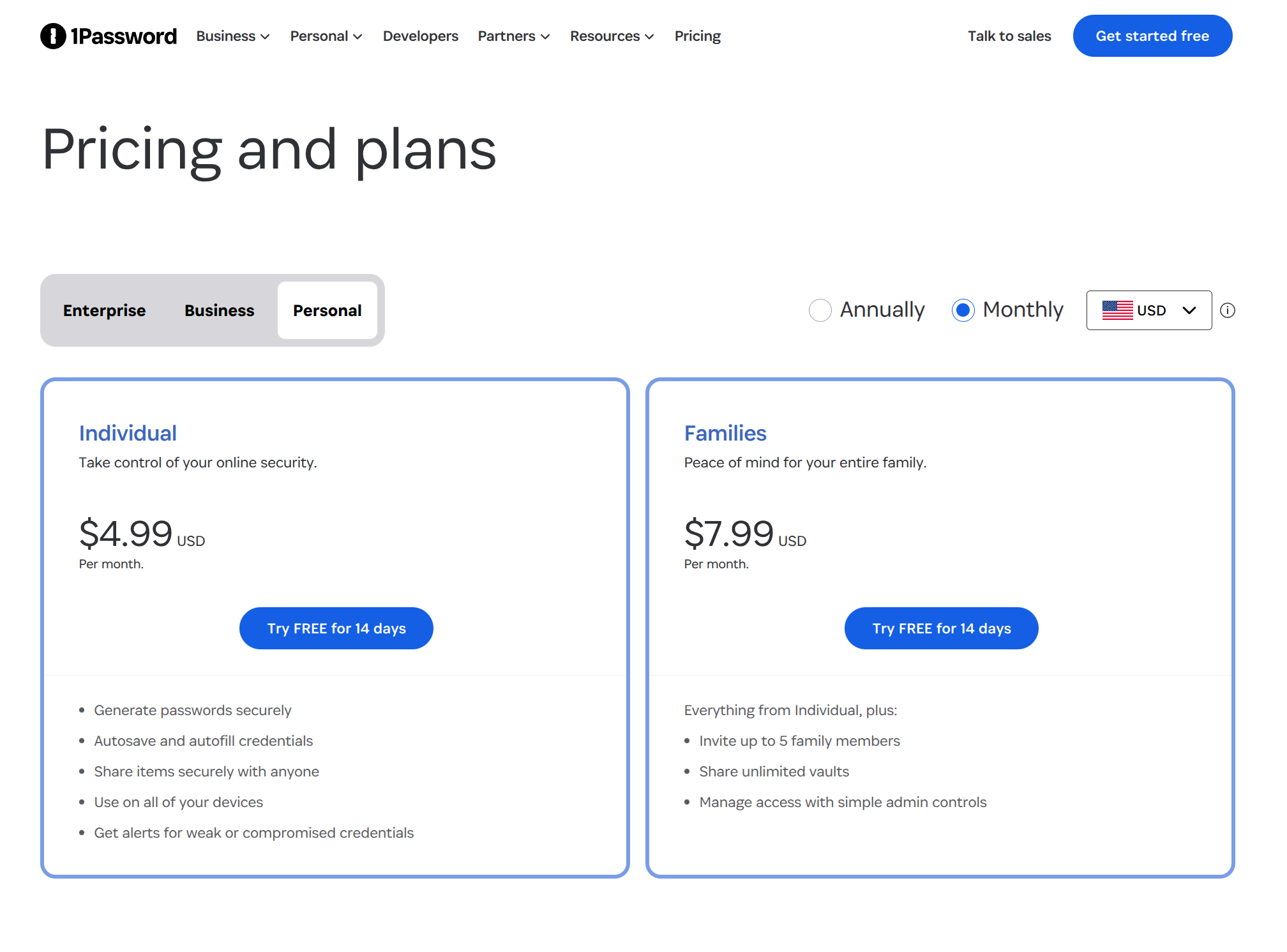
Here’s 1Password’s current personal pricing page: Individual has risen to $4.99/month, and Families is $7.99/month:
What’s more, handing your entire digital identity to a commercial company essentially means staking your whole fortune on the other party’s business ethics, compliance policies, and never having a security incident. Overseas companies at least have relatively transparent judicial environments and historical records to reference; with domestic equivalents I actually dare even less — data sovereignty, the boundaries of censorship, and the path to accountability after a leak all leave you more uneasy. This isn’t aimed at any one vendor; rather, I’ve grown ever more convinced that “something at the level of passwords must be held in my own hands.”
I also tried KeePass. It’s open source, free, with an open format and countless plugins in its ecosystem — a huge advantage. But honestly, I just can’t stomach the interface. I don’t want a 2003-era Windows application managing my digital identity. What I want is a tool I’ll open dozens of times a day — its looks and interaction have to be at least passable.
I also seriously evaluated Bitwarden. It really is the most mainstream alternative outside 1Password, and its free tier is generous to the point of surprise. But for a heavy user like me, several hurdles in the free tier are hard to get past:
- No built-in TOTP generator: Free accounts can’t generate the 6-digit two-factor codes directly inside a password entry — you either open a separate authenticator app or pay to upgrade.
- No encrypted attachments: The free tier’s attachment capacity is 0, so ID cards, private-key backups, and recovery codes have nowhere to go.
- No password health report: Detection of weak passwords, reused passwords, and leaked passwords isn’t available in the free tier.
- Limited shared organization seats: A free organization allows only 2 people and 1 collection — family sharing is basically unusable.
- Limited premium hardware key support: Advanced hardware 2FA like YubiKey requires Premium.
I’m not saying Bitwarden is bad — its business model is very clear. But once I listed these limitations, there was only one conclusion: rather than keep getting blocked by the subscription wall, I might as well fire up the stove again and stir-fry my own dish.
OnePass: The Password Manager I Built Myself
And so OnePass was born.
First, a few of its core positions:
- Open source and free: The code will be fully open — anyone can review it, fork it, and package it themselves.
- Self-hosted cloud or pure local, your choice: You can use a local
.kdbxfile completely offline, or connect to my self-hosted OnePass Cloud (a Go backend). The sync protocol and data model are fully open and auditable. - End-to-end encryption: The cloud stores only the ciphertext of the whole encrypted vault; the master password never touches the database.
- Automatic data sync: Additions, deletions, and changes sync automatically across devices within about 30 seconds — no manual export/import required.
- Cross-platform support: Desktop and mobile will be covered going forward, so your password vault can be opened on any device.
This is what it looks like:
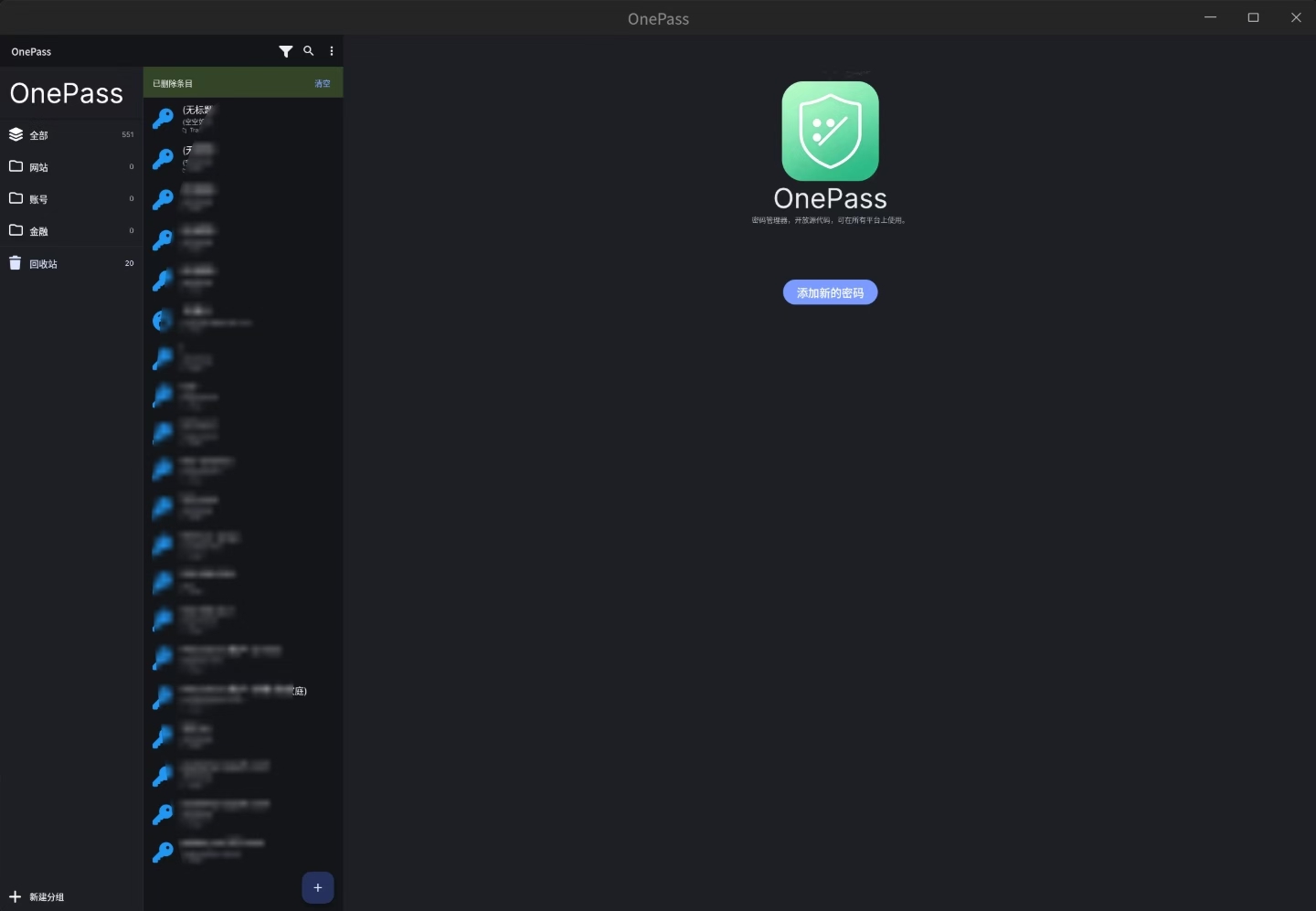
On the left is group navigation, in the middle is the password entry list, and on the right is the details/editing area. The whole thing is a dark theme; icons and spacing were tuned to my own daily usage habits. There are no fancy animations, but it looks comfortable and everything is easy to hit.
On startup, it first asks you to choose or create a vault:
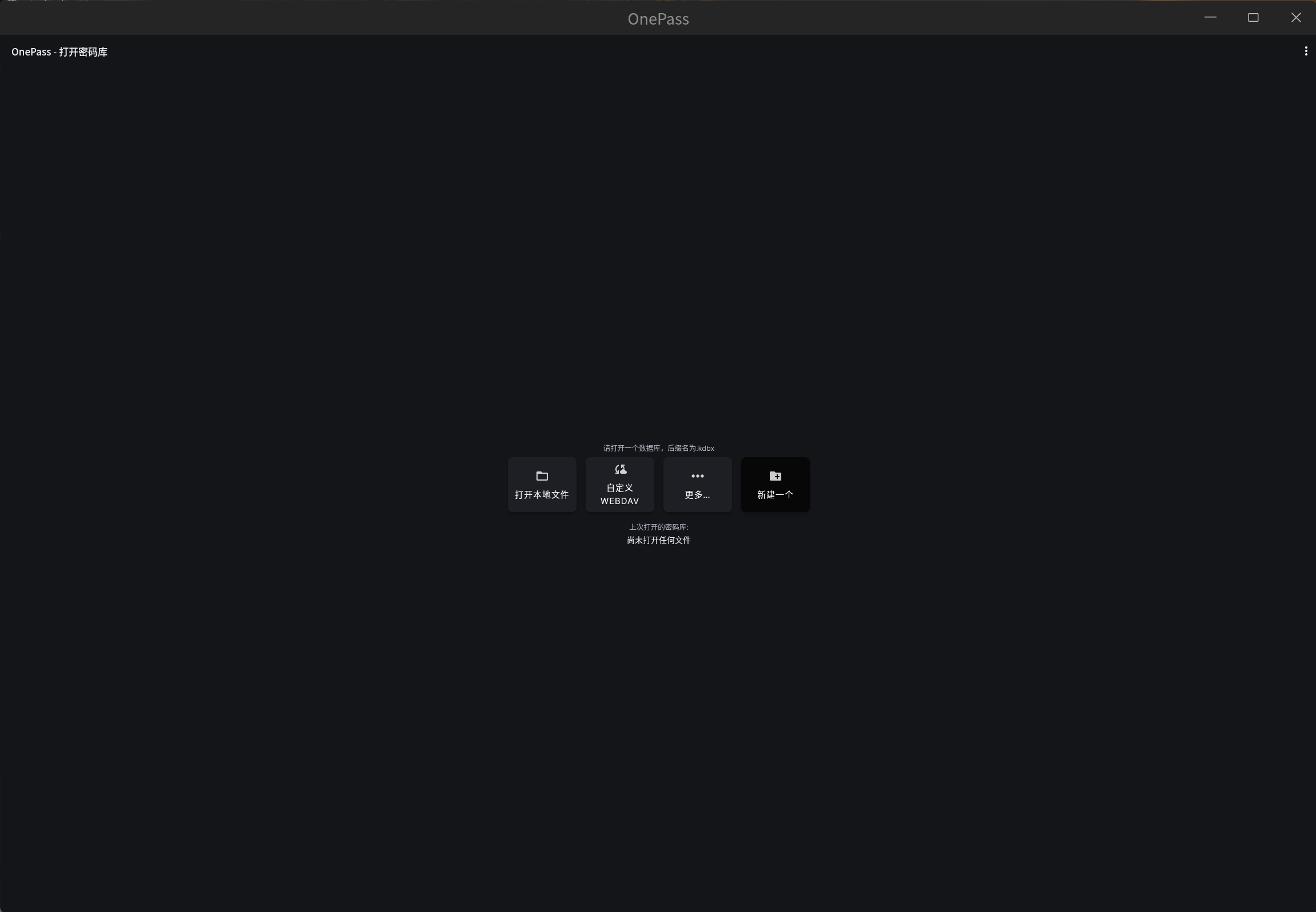
Currently three options are supported:
- Open a local file: Just pick a
.kdbxfile — the data stays entirely local. - OnePass Cloud: Connect to the self-hosted cloud backend for automatic multi-device sync, with data end-to-end encrypted the whole way.
- Create a new one: Start from scratch and create an encrypted vault.
Technical Implementation: From WebDAV to a Self-Hosted OnePass Cloud
The original sync method in this project was WebDAV. Later I rewrote the entire sync layer into a self-hosted OnePass Cloud — a Go backend that stores only ciphertext. Below is the latest technical implementation.
Data Model: One Encrypted Blob for the Whole Vault
A OnePass vault is essentially a KDBX file (compatible with the KeePass format). In the cloud sync model, what the server stores is not “one row per password” but rather one blob — the entire KDBX file after encryption:
- The master password derives a 32-byte vault key on the client using Argon2id (64 MiB / 3 iterations / 4-way parallelism);
- The entire KDBX file is encrypted with AES-256-GCM (random nonce); only the ciphertext is uploaded;
- The server stores only
nonce + ciphertext, with no key capable of decryption anywhere; - The server is written in Go, with data landing in MySQL (double-1 configuration + binlog + two-phase commit, guaranteeing no committed data is lost).
So even if the database is exfiltrated, all the attacker gets is ciphertext.
Account System: Email + Secret Key, the Master Password Never Hits the Database
Registration only requires an email address; the server automatically generates a 32-character UUID as the account’s Secret Key (displayed in groups of 4, saveable). The master password is used only on the client to derive the vault key:
- Login = email + Secret Key; the server never verifies the master password;
- The master password is never stored; when changing it, the client re-derives the key with the new password, re-encrypts the whole blob, and uploads it;
- The mobile client supports QR-code login (server-side scan sessions + X25519 ephemeral key transfer).
Multi-Device Sync: Lightweight 30-Second Polling
Every 30 seconds the client calls a lightweight endpoint (returning only updatedAt and the blob size); only when it detects a server-side update does it download the whole blob and refresh automatically. Unsaved local changes are never overwritten. When you’re out with no network, polling automatically backs off to 5 minutes, so no data is wasted.
Unlock Experience: System Password + Remembered Master Password
- Within the same boot session, after the first unlock with the master password, the app stores the vault key and master password encrypted in the system keyring;
- After that, reopening the app only requires verifying the operating system user password to get straight in, with normal editing and saving;
- After restarting the computer, the remembered key is invalidated and you must re-enter the master password — a deliberately preserved security boundary.
Sharing: X25519 End-to-End Encapsulation
When sharing an entry, the client generates a random share key to encrypt a copy of the entry, then encapsulates the share key with the recipient’s X25519 public key; the recipient unwraps it with their own private key. The server merely forwards ciphertext throughout and sees no content at all.
Chrome Extension: Local Bridge, Never Touching the Server
The extension communicates with the desktop app via Native Messaging. The desktop app starts a loopback HTTP bridge listening only on 127.0.0.1, handing the unlocked vault (bytes + transformed key) to the extension host. The extension needs no server configuration and no master-password entry — once the desktop app is unlocked, the browser auto-fills usernames, passwords, and TOTPs.
Migration: Importing from 1Password / KeePass
There’s a built-in import wizard: just pick the CSV exported from 1Password or any .kdbx file; after it’s read, you can check off the entries to import and move them into OnePass in one click.
Why I Designed It This Way
First, the data must be mine, and only mine. OnePass doesn’t force any cloud account, and it doesn’t bind your vault to some commercial provider. You can use it completely offline, or connect to my self-hosted OnePass Cloud — the server stores only ciphertext, and the master password forever stays in your hands. No commercial company keeps it for you; there’s only you and your data.
Second, two-factor authentication must be built in. I personally can’t accept the fragmented experience of “the password manager handles passwords while another app handles TOTP.” OnePass supports TOTP generation directly inside password entries — scan the QR code, back it up, copy the verification code, all in one step. And yes, the free, open-source, local version already has it.
Third, attachments and health reports should exist too. Sensitive files like ID photos, private-key backups, and recovery codes should naturally sit together with their corresponding password entries, encrypted by the same master password. Weak-password, reused-password, and leak-detection features I’ll add step by step — no extra paywall required.
Finally, it has to look good. This sounds subjective, but a tool you click dozens of times a day will drain your attention if the interface is rough. In 2026, I don’t want to keep enduring a 2003-era UI.
My Take on SaaS Subscriptions
Having written this far, I should walk back the bold claim in the title: it’s not that “no SaaS company will grow,” but rather that “no company that locks basic personal tools behind a subscription wall will grow with me.”
Password managers, clipboards, notes, to-do lists, calendars… what do these tools have in common? Their core value is “helping me manage my own data.” But if you actually dig through each app’s privacy agreement, you’ll find that who the data really belongs to, what the platform can do with it, and whether you can take it away when the service shuts down are all spelled out clearly in the terms — often the data doesn’t even qualify as “belonging to me”; that’s just our wishful thinking. When this value is packaged as an ongoing rental fee, and data sovereignty is further diluted by contract terms, I lean toward looking for a solution that reduces the rent to zero and genuinely returns control to me.
Open source and self-hosting are not a silver bullet — they bring maintenance costs and security responsibility. But for capable users, it’s a worthwhile deal: a one-time investment of learning time in exchange for long-term freedom and the peace of mind of not being held hostage by pricing strategies.
OnePass is still in its early days, and its features are far from complete. But it is yet another milestone in my digital life: from “paying someone else to keep things for me” to “building my own lock, with the key only in my hands.”
If you’re also tired of picking subscription plans inside a password manager, feel free to follow this project. I’ll open-source the code later, so more people who want to escape SaaS rent can have an option that truly belongs to them.
评论
0 条评论