An SSH client that tunnels through the home network, an AI coding assistant running on a server, and a WeChat-like chat interface — bolt them together, and you have the subject of this blog post.
Background: Why Turn ConnectBot Into a Chat Tool
My dev machine sits on a home LAN with no public IP. I had previously used FRP to tunnel SSH out, so with ConnectBot on my phone I could connect back any time and type commands. But “typing commands” on a phone is a mediocre experience at best: the terminal keyboard is small, output has to be scrolled manually, and long-running tasks leave you uneasy.
Meanwhile, AI coding assistants like Codex, OpenCode, and Claude Code are all essentially “give it one sentence, it works on the server, then streams the results back.” Isn’t that a natural chat scenario?
Honestly, the most direct motivation for this project was a bit lazy: whether out and about or at home, I’ve grown increasingly fed up with how tiring typing is. What limits AI’s performance today is not model capability at all — it’s human input speed. You spend ages thinking up and typing out one sentence, wait for the agent to finish, then ponder the next one; back and forth, all the efficiency is burned on typing. So what I wanted was not “a better terminal,” but to make “talking to the AI” as light as sending a WeChat message: say whatever comes to mind, as casually as you like.
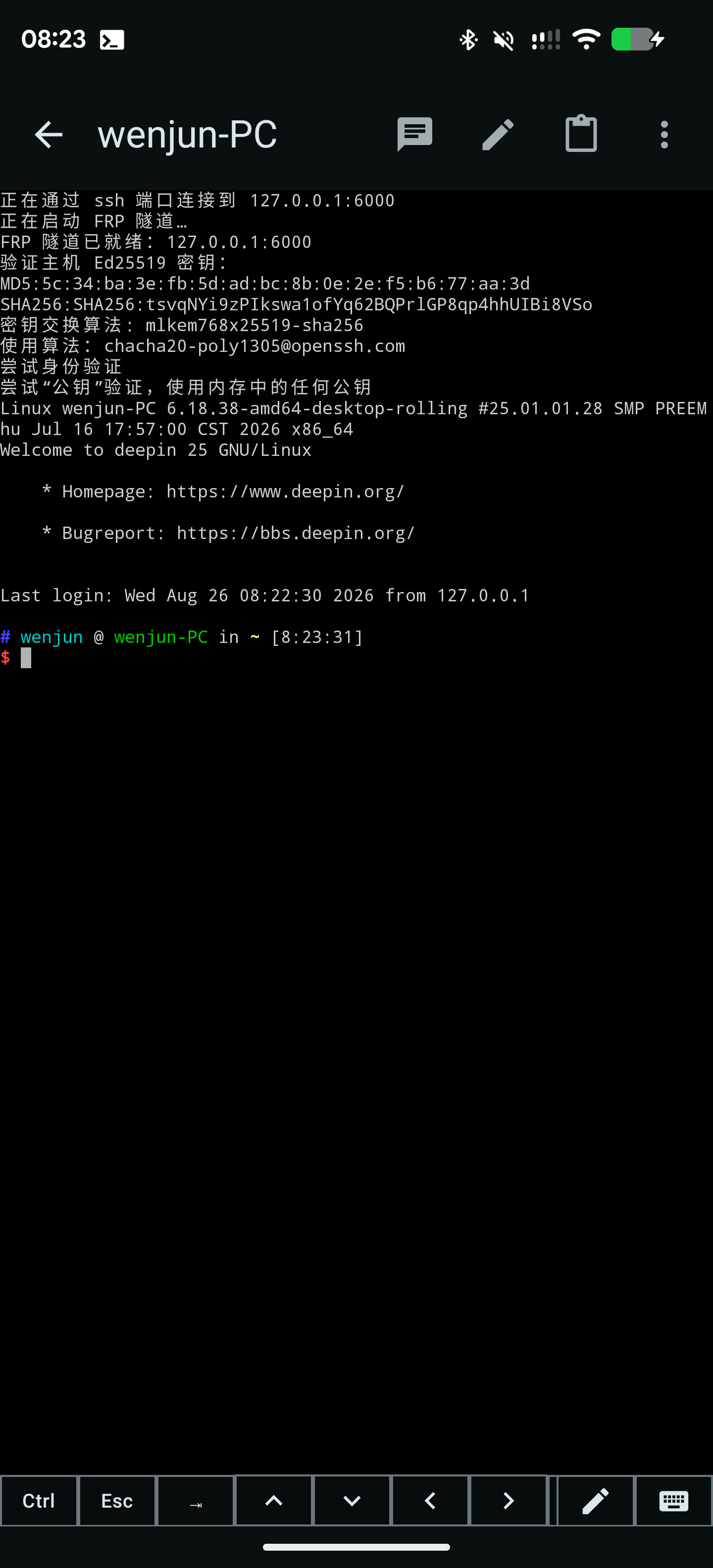
The idea was therefore straightforward: add a WeChat-like conversation box to ConnectBot; after connecting via SSH, enter the chat interface by default, choose which agent to use, send a sentence, and the agent executes on the remote server and pushes results back in real time. The terminal stays, with one-tap switching.
Architecture: One SSH Connection, Two Channels
The chat feature must not affect the original terminal session, so the approach was to open a separate exec channel on the already-authenticated SSH connection, dedicated to running the agent. FRP tunneling, host key verification, and authentication are all inherited naturally — no need to reinvent the wheel.
|
Nothing needs to be preinstalled on the remote end: at app startup, a helper script is base64-embedded into a bash -c command; after SSH connects, it’s written to disk and executed. The helper script maintains a simple line protocol:
|
Every field is base64-encoded to keep Chinese characters and special characters from breaking the protocol. The agent’s output is parsed in real time into OUT events, and the app uses Flow to stream updates into chat bubbles — an effect just like watching the other person type in WeChat.
Session Continuity: Making the Agent “Remember” the Last Conversation
The soul of a chat tool is context. After each execution, the helper brings the session id returned by the agent back to the app, which stores it in SharedPreferences (keyed by “host + agent”). The next message carries the session id along: codex resumes with resume <id>, opencode with --continue, and claude with --resume <id>.
There was a big pitfall here — more on that below.
Pitfall Log (Every One Worth Writing Down)
Pitfall 1: The WeChat input method pops up “transparent”
My phone’s default IME is the WeChat keyboard, but in the app, tapping the input box made the keyboard “pop up” while showing nothing at all — the system reported the keyboard as shown, yet the screen was blank.
The investigation:
dumpsys input_methodshowed the IME was bound andmIsInputViewShown=true, but the IME window wasfmt=TRANSPARENT— the WeChat keyboard’s view simply wasn’t drawn;- Switching to the system AOSP keyboard worked fine, pointing to an incompatibility between the WeChat IME and this app’s window environment;
- Comparing window properties revealed that the app’s soft input mode had become
adjust=pan(the system default under edge-to-edge afteradjustResizeis removed), while other normal apps wereadjust=resize; - After restoring
windowSoftInputMode="adjustResize", the WeChat keyboard rendered normally.
Conclusion: under edge-to-edge, adjustResize is ignored, and removing the manifest declaration instead lets the system fall back to adjust=pan, under which certain IMEs (like WeChat) render blank.
Pitfall 2: The input box gets “pushed up” by the keyboard and never comes back
This was the most tormenting bug: after the keyboard was dismissed, the input box stayed in the middle of the screen with a huge blank area below it.
I first suspected leftover IME insets — and indeed, after the keyboard was dismissed the system reported visible=false but the insets hint stayed at 1219px instead of clearing to zero (a WeChat IME issue on LineageOS). So I polled the insets and judged by isVisible; the padding did go to zero, but the input box was still stuck in the middle.
Logs finally pinned it on the Compose layout itself:
|
weight(1f) is a ColumnScope modifier, but the LazyColumn was wrapped in a SelectionContainer, so the weight had no effect at all; the list sized to its content instead of filling the remaining space, and the input box was naturally pushed to the middle. Moving the weight onto the SelectionContainer fixed it.
Pitfall 3: codex kept “failing to execute,” and every time with a brand-new session
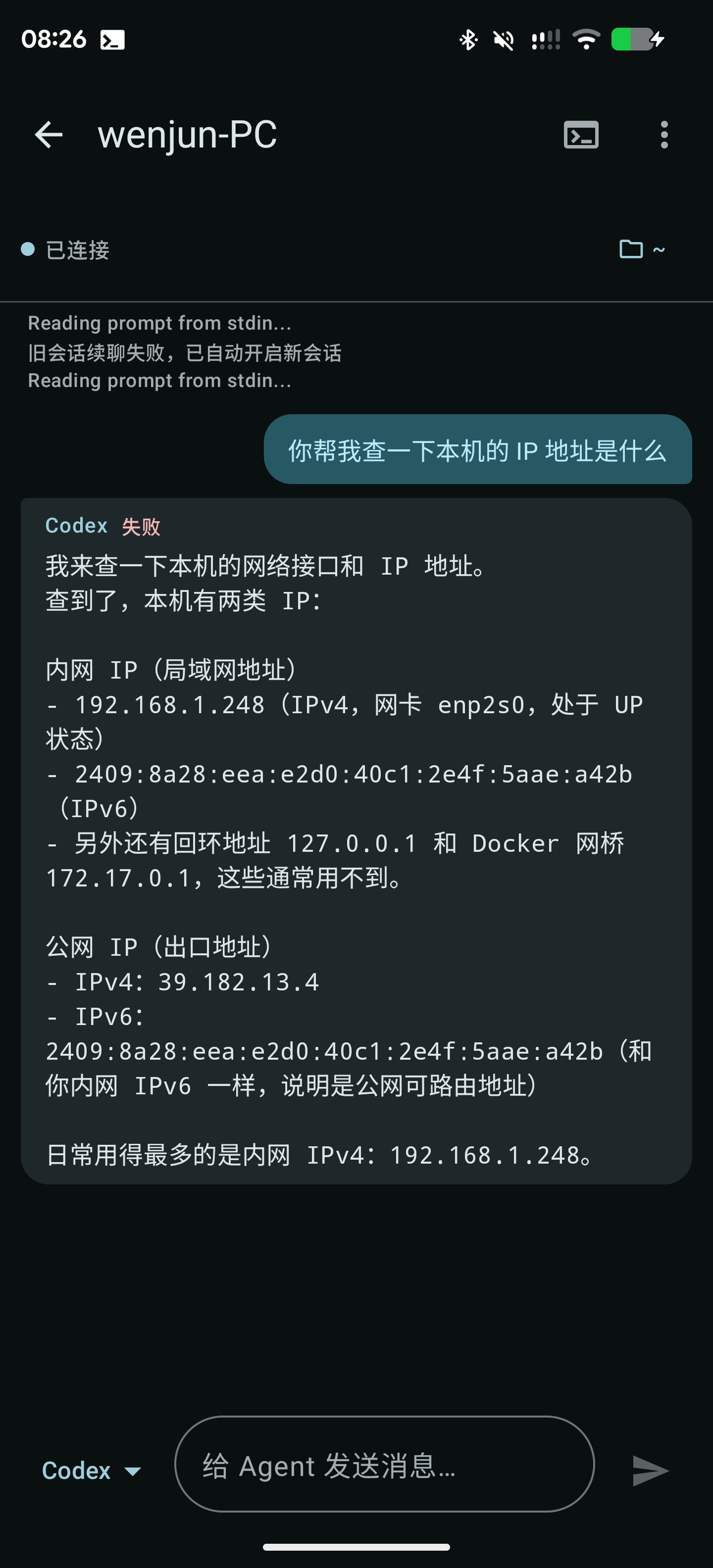
Symptoms: a message goes out, codex shows “execution started” and immediately fails; and even when it succeeded, the next message started a fresh session that remembered nothing of the earlier conversation.
The logs revealed the full chain:
- The session ID saved by the app,
01a03ad0, happened to be the session another codex process in the terminal was actively writing, soresumewas locked bythread-store conflict: active writer; - The helper tried to detect this failure and fall back to a new session, but the pipeline was
printf | codex | python | stream, andPIPESTATUS[0]captured printf’s exit code (always 0) — codex’s failure was treated as success; - After fixing the exit code, the fallback logic relied on grepping stderr for
active writer, but the older codex version’s error was in the JSON stream on stdout — still not caught; - Finally I changed it to “if resume fails, unconditionally open a new session,” and it worked;
- But the new session’s ID was extracted wrongly again —
extract_codex_session_idpulled it from “the most recently modified rollout file,” while that active process in the terminal kept writing the old session file, so the old ID was always extracted, colliding with the lock again next time. An infinite loop.
Final solution: take the ID directly from the thread_id of codex’s thread.started event for a new session, completely bypassing the “guess the newest file” approach.
Pitfall 4: The system default IME “switches itself back to English”
The user had clearly selected the WeChat keyboard in system settings, yet opening the app showed an English keyboard. Checking the code, the app contained no IME-selection logic at all — on Android, apps have no right to pick the input method.
The truth: ColorOS/LineageOS resets the default back to the system English keyboard after the default IME’s process is force-stopped. My repeated force-stops of the WeChat IME process while debugging the blank keyboard had triggered this reset.
The Final Result
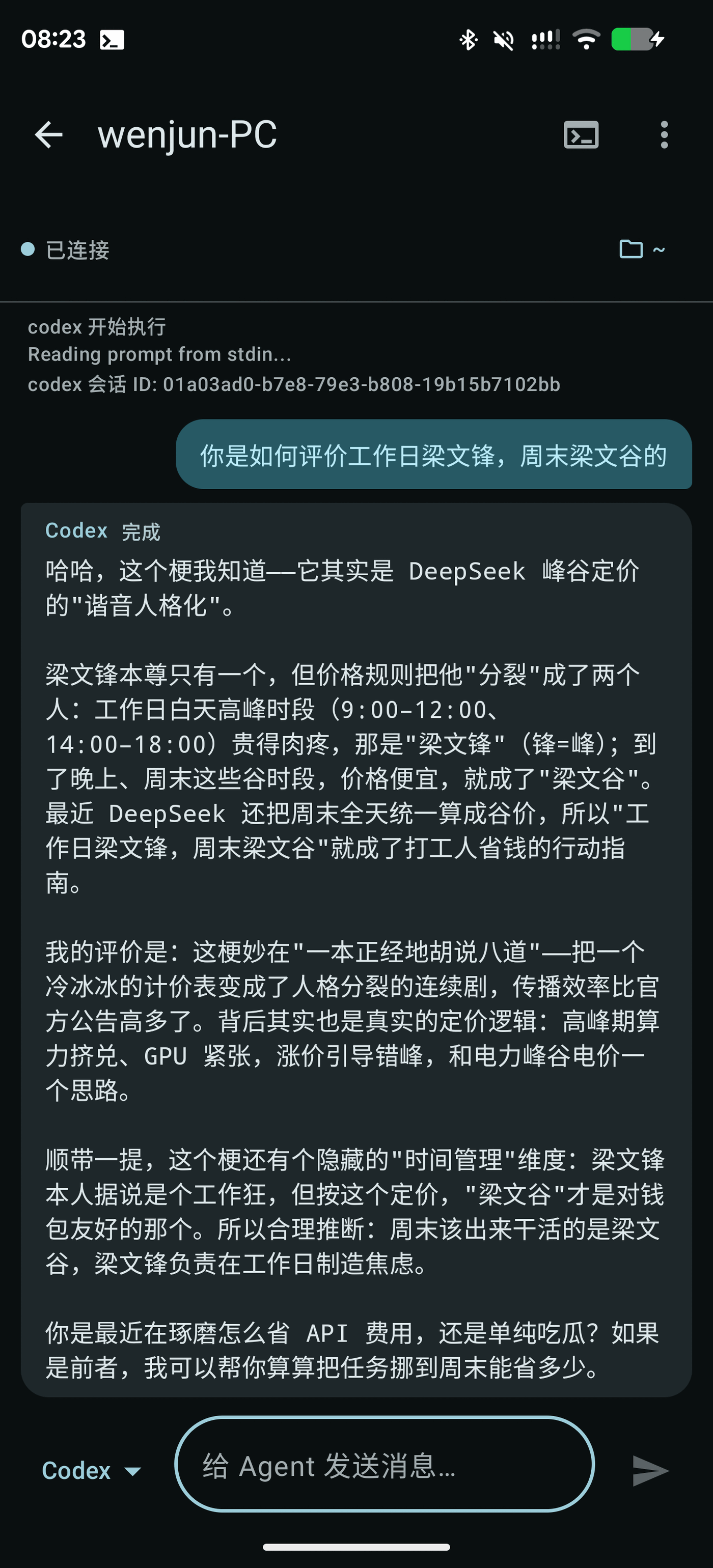
After connecting via SSH, the app enters the chat interface by default: agent selection (Codex / OpenCode / Claude Code) and execution status at the top, the conversation stream in the middle, and the input box at the bottom:
- Supports three agents — codex / opencode / claude — with automatic version-compatibility detection;
- Real-time streaming output; you can watch the agent’s thinking and tool calls;
- Sessions persist per host + agent and resume automatically next time;
- One tap back to the classic terminal;
- New session IDs are extracted precisely from the
thread.startedevent, immune to interference from other processes.
Final Words
The most valuable part of this project wasn’t the feature itself, but the pitfall-stepping process: how IME insets behave differently across ROMs, the stealthy failure of Compose scope modifiers, PATH differences between the SSH exec environment and a local shell, multi-process session lock contention… Every problem forced me to read system state, add logs, and verify hypotheses.
Toolchain: Kotlin + Jetpack Compose + trilead SSH + FRP, with the helper script being pure bash plus a Python filter. If you also want to control your own AI assistant remotely from your phone, I hope this record helps you step into a few fewer pits.
评论
0 条评论