As AI coding tools evolve, plain “conversation” no longer meets complex development needs. We need AI to be able to proactively “do things”—like query a database, read local files, or directly run scripts. That’s where MCP (Model Context Protocol) and Skills come in.
This article walks you through configuring and using these powerful capabilities in the three hottest AI coding tools right now—Trae, Cursor and Claude Code.
What is MCP (Model Context Protocol)?
Simply put, MCP is an open standard introduced by Anthropic; it’s like the AI’s “USB port”.
- MCP Server: provides tools or data (for example a service that checks the weather, or one that can read and write GitHub).
- MCP Client: the AI software that uses those tools (for example Trae, Claude Desktop, Cursor).
With MCP, you can turn any external tool into the AI’s “hands and feet.”
1. Trae IDE: Native and Powerful Skills Support
Trae is an AI IDE from ByteDance; its MCP support is very intuitive and it introduces a unique Skills concept.
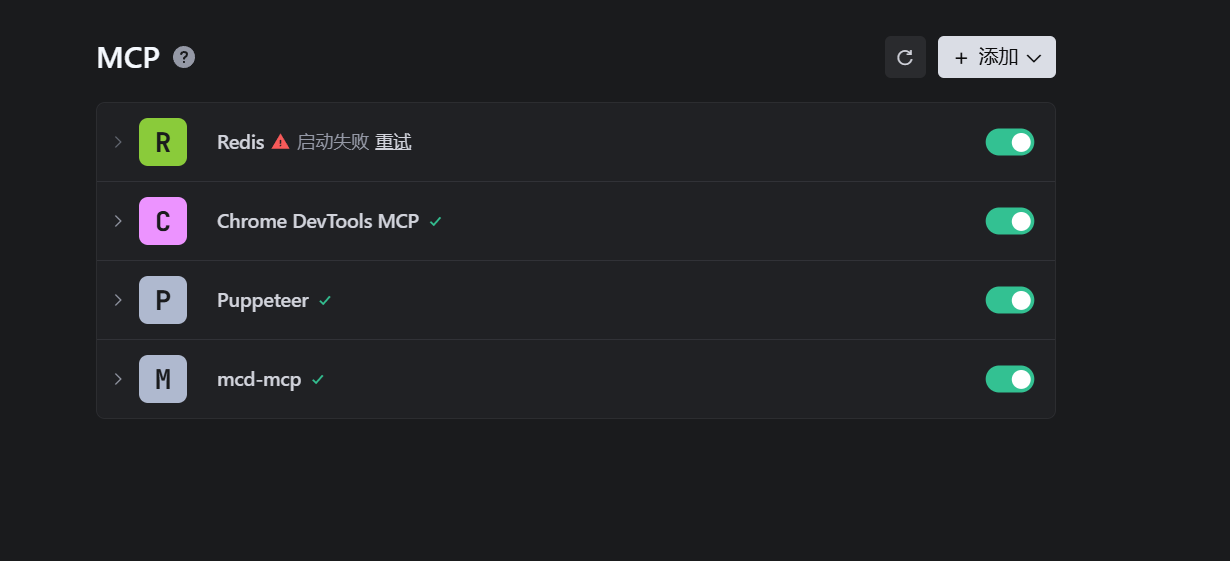
How to Configure an MCP Server
- Open settings: click the gear icon at the bottom left, or use
Cmd/Ctrl + ,. - Go to MCP management: find “Features” -> “MCP Servers” in the settings menu.
- Add a service:
- Trae usually offers some presets (such as Local Shell, Git, etc.).
- Click “Add Custom Server” and enter the launch command.
- Example (adding SQLite support):
- Name:
sqlite - Command:
uvx(make sure uv is installed) ornpx - Args:
mcp-server-sqlite --db-path ./my-database.db
- Name:
How to Use Skills
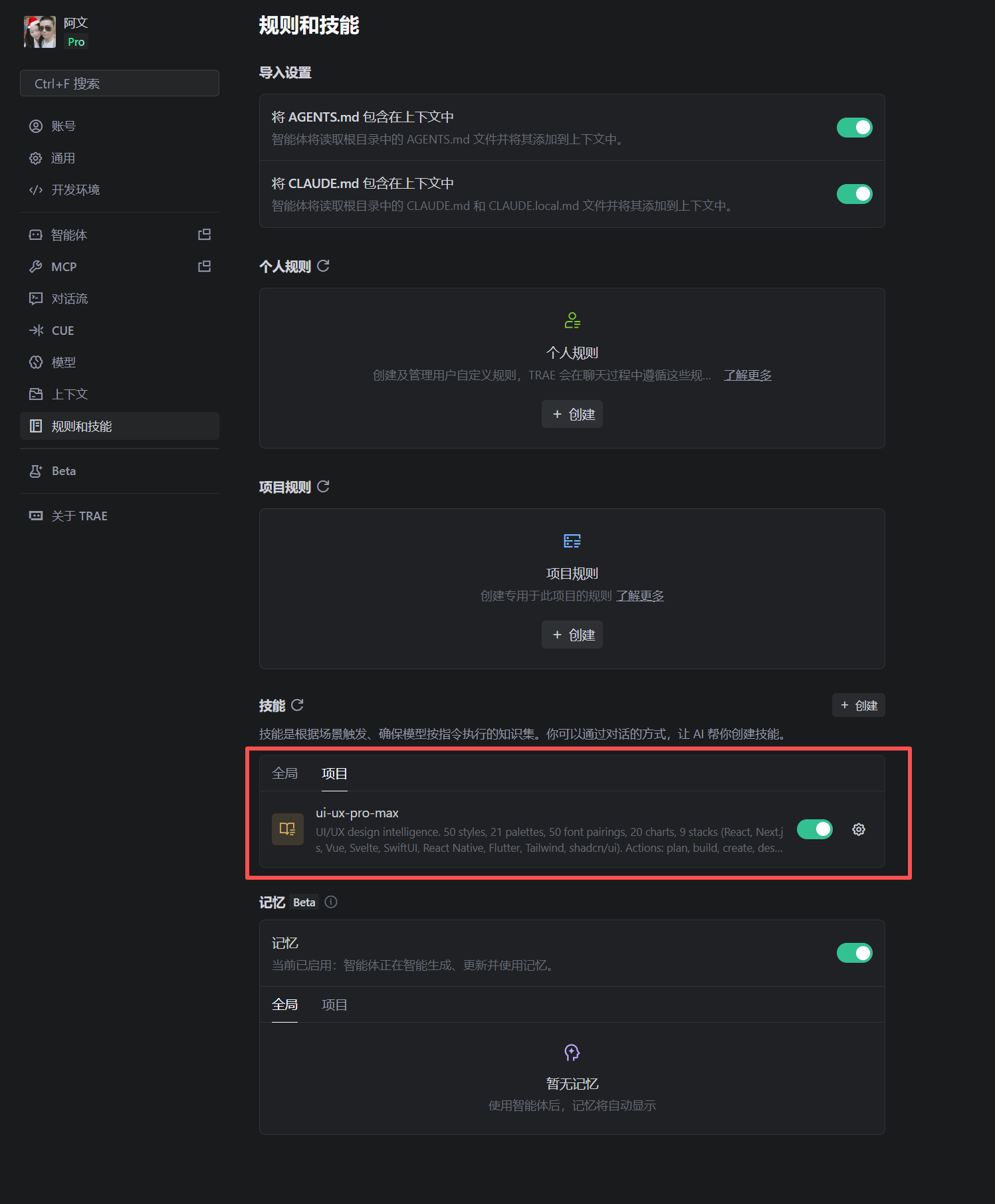
Trae’s Skills are a higher-level agent capability. Besides the basic MCP tools, Trae also lets you load dedicated Skill packages (for example a UI design expert or a code review expert).
- How to invoke: in the Chat interface, use natural-language instructions directly, or use the
/command to view available skills. - Skill Creator: Trae even lets you define your own skills via the
skill-creatortool, packaging frequently used prompts and workflows into a Skill.

2. Claude Code: The Geek’s Terminal Weapon
Claude Code is Anthropic’s command-line AI assistant; it is the standard reference implementation of MCP and is very flexible to configure.
Installation and Initialization
Make sure you’ve installed the tool via npm install -g @anthropic-ai/claude-code.
Adding MCP via the CLI
Claude Code provides convenient command-line interaction for managing MCP.
|
--scope user: makes the tool visible to all projects.--scope project: available only to the current project (generates a.mcp.jsonfile).
Editing the Config File Manually
If you like to be in control of everything, you can edit the config file directly:
- macOS:
~/Library/Application Support/Claude/claude_desktop_config.json - Windows:
%APPDATA%\Claude\claude_desktop_config.json
Example config:
|
Once configured, type /mcp in Claude Code to see the connection status.
3. Cursor: The Art of Context and Rules
Cursor’s current core logic leans more on Context (@Symbols) and Rules, but it is gradually catching up on MCP support.
The Core Alternatives: Docs and CursorRules
Although Cursor’s MCP support is still evolving, its existing mechanisms are just as powerful:
- @Docs (documentation skill):
- In Chat, type
@Docs->Add new doc. - Paste the library’s documentation link and Cursor indexes it automatically. This is like temporarily installing a “knowledge-base Skill” for the AI.
- In Chat, type
- CursorRules (behavior skill):
- Create a
.cursorrulesfile in the project root. - Define rules in natural language, for example: “When writing React components, always use TypeScript and Tailwind CSS.” This is like hardening a “code-standards expert Skill.”
- Create a
Enabling MCP (Beta)
If your Cursor version supports MCP:
- Go to Settings -> Features (or Beta).
- Look for the MCP tab.
- Adding is similar to Trae: specify the Server’s Command and Args.
Hands-On: Add a “File Search” Skill to Your AI
Whichever tool you use, the most practical starter MCPs are fetch and filesystem. Here we use Trae as an example to add a skill that can fetch web-page content:
- Prepare the environment: make sure Node.js is installed.
- Configure the Server:
- Command:
npx - Args:
-y @modelcontextprotocol/server-fetch
- Command:
- Use it:
- In Trae Chat, type: “Please fetch the content of https://example.com and summarize it.”
- Trae recognizes the intent automatically, calls the
fetchtool to get the content, and then generates the summary for you.
Summary
- Trae: offers the friendliest GUI and a native Skills extension system, ideal for developers who want things to work out of the box.
- Claude Code: ideal for CLI lovers and advanced users who need to strictly follow the MCP standard.
- Cursor: currently better at leveraging local context and documentation indexing, ideal for heavy code completion and refactoring.
Once you master MCP and Skills, your AI is no longer just a chatbot but a super-assistant that can really “roll up its sleeves and work.”
评论
0 条评论