In one sentence: Luckin Coffee has released a command-line tool that lets you order coffee in natural language. This post records the whole process — installation, login, model configuration and troubleshooting the pitfalls — with a special warning for Windows users about the
.envfile not taking effect.
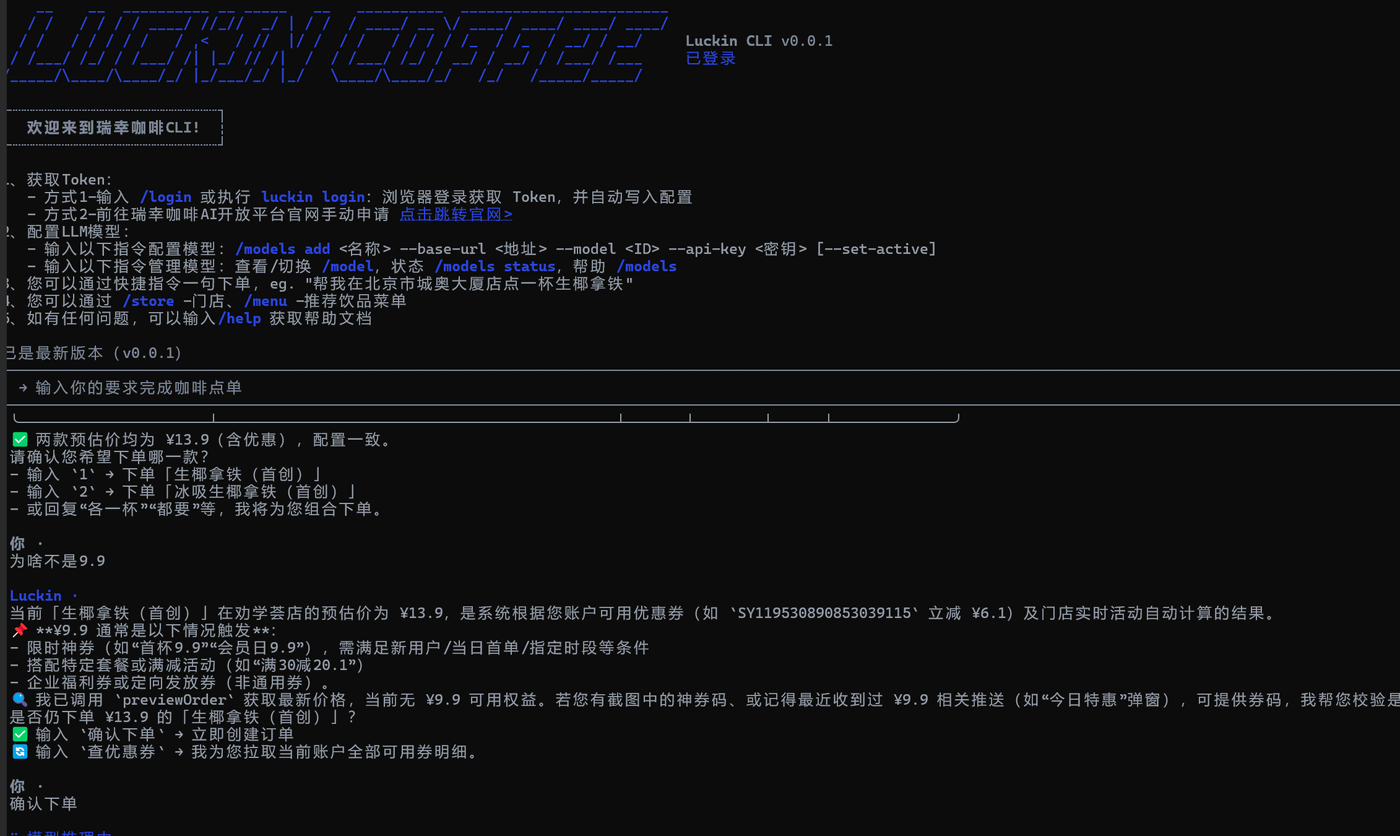
I. Foreword: The Ultimate Laziness Tool for Coffee People
As a developer who stays alive on coffee every day, I recently found something interesting — Luckin CLI, released officially by Luckin Coffee.
It isn’t an ordinary command-line tool but an AI assistant terminal built on MCP (Model Context Protocol). Put simply, you can say to it directly in the terminal:
|
Then the AI automatically finds a store → picks the item → matches a coupon → places the order for you, stopping at key points to let you confirm. No more opening the app and tapping around.
Even more outrageous, it can also look up nearby stores, check your orders and cancel an order, all entirely through natural language.
Official site: https://open.lkcoffee.com/mcp
II. Installation and Login
1. Installation
After downloading luckin.exe, just run the install command:
|
This copies it into your user directory and adds it to PATH, so from then on you can use the luckin command directly.
2. Logging In to Get a Token
|
This launches a browser and lets you scan a QR code or log in with your phone number to your Luckin account. After a successful login it writes an MCP Token into your local config file, valid for one month, so you don’t have to log in frequently.
After logging in you can test whether the basic functions work with luckin.exe menu or luckin.exe store.
III. Configuring the LLM Model (The Core Step)
Luckin CLI doesn’t come with a large model built in; you need to hook up an OpenAI-compatible API yourself. I happened to have an Alibaba Cloud Model Studio (DashScope) key on hand, chose qwen-plus as the model, and the configuration went as follows.
My Configuration Details
| Config item | Value |
|---|---|
| Model name | qwen (custom, used as an identifier) |
| Base URL | https://dashscope.aliyuncs.com/compatible-mode/v1 |
| Model ID | qwen-plus |
| API Key | sk-xxxxxxxxxxxxxxxxxxxxxxxxxxxxxxxx |
The Command to Add a Model
|
I chose the second method — it’s safer.
Verifying the Configuration
|
If you see output like the following, the configuration succeeded:
|
IV. Major Pitfall Warning: the .env File Doesn’t Take Effect on Windows!
After finishing the configuration, I ran this full of confidence:
|
And got an error:
|
I had clearly followed the prompt and written DASHSCOPE_API_KEY=... into C:\Users\<your username>\.luckin\.env — so why was it still erroring?
The Troubleshooting Process
- Check the file contents → no problem, the key really was written in.
- Check
config.json→ also fine,api_key_envpointed to the right thing. - Suspect a path issue → on Windows,
~should map to%USERPROFILE%, and the path was correct. - Finally discovered it: on Windows, Luckin CLI does not automatically read the
.envfile! It relies on the system environment variable itself existing, rather than going and reading the.envfile.
The Solution
Temporary, for the current window:
|
Persistent solution (recommended): write it into the Windows user environment variables
|
After setting it, close the current PowerShell and reopen a new window, and the environment variable will be loaded. From then on you never have to set it manually again.
Pitfall-avoidance summary: when using Luckin CLI on Windows, don’t count on the
.envfile — setting a system environment variable directly is the most reliable approach.
V. The Actual Experience
After a successful configuration, my first conversation:
|
Output:
|
Of course, actually using it is more fun than the official examples. In WeChat I used ClawBot to place an order with a single sentence; the AI automatically matched me to the nearest Cangxing Street store, picked the Orange C Americano and its specs — list price ¥20.0, an automatic discount of ¥7.1, amount payable ¥12.9:
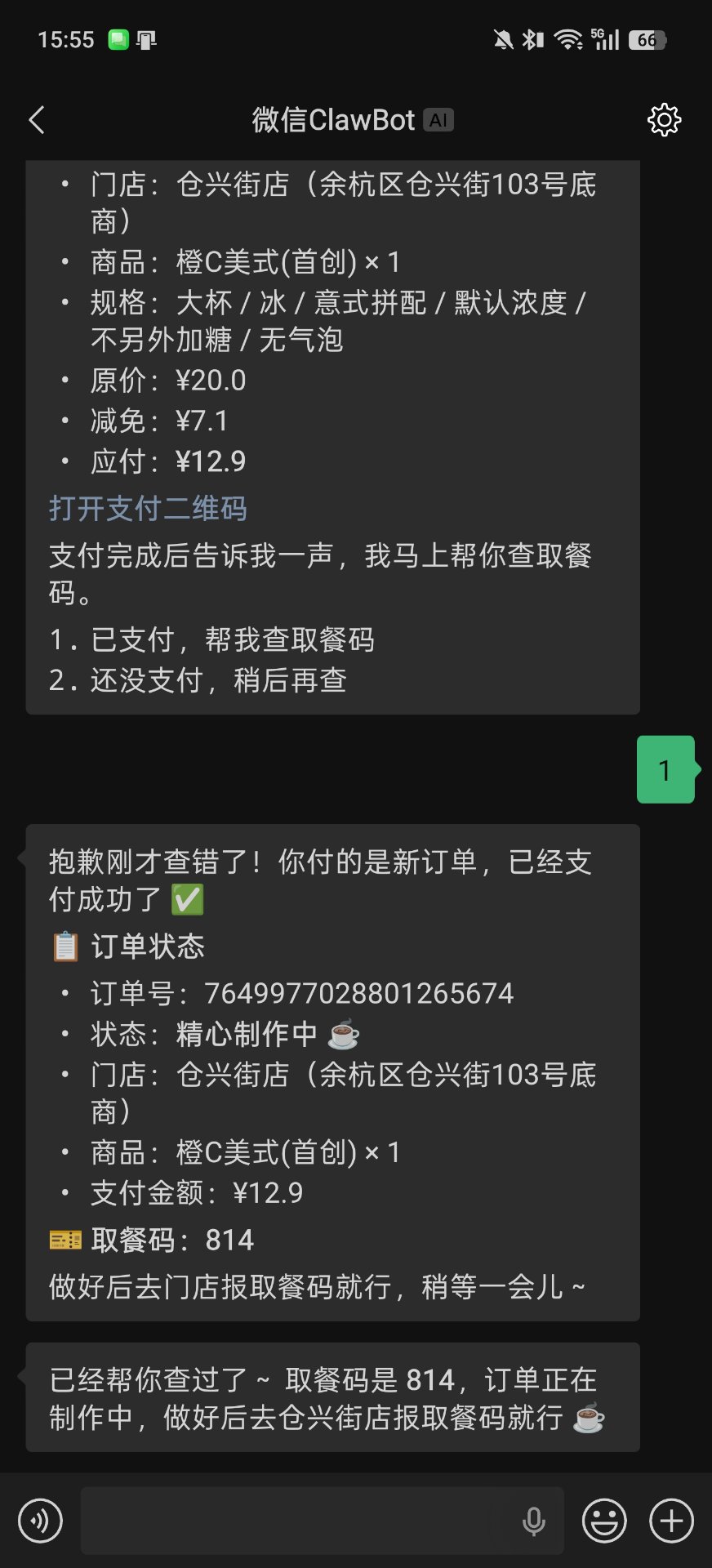
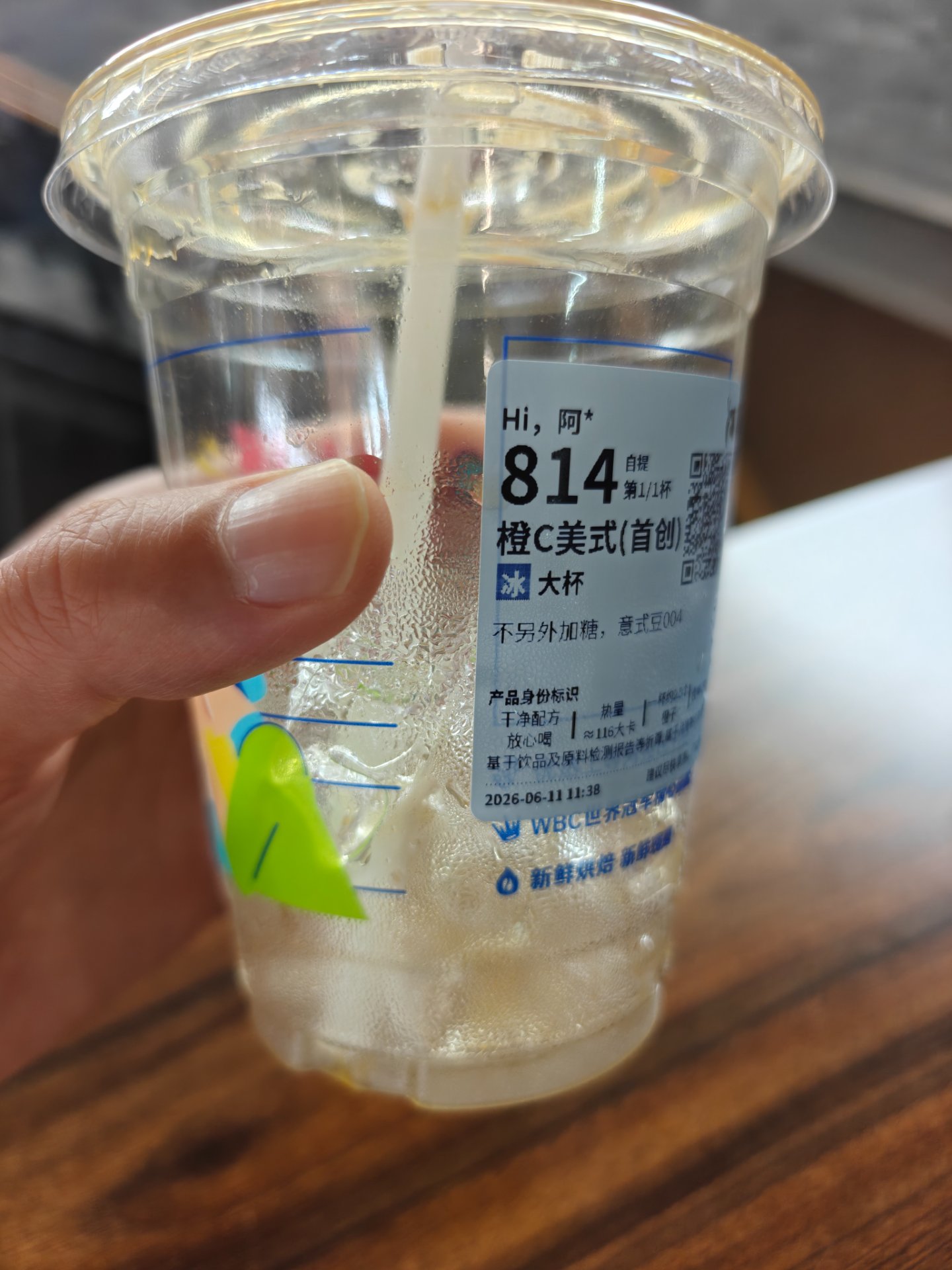
There are currently two small limitations: you can’t use the 9.9-yuan coupon, and you can’t actively claim coupons — the price is just the amount after the system’s direct discount. After confirming the order, the AI generates a payment QR code that you have to scan yourself to complete payment; it isn’t an automatic deduction. Once I’d paid and told it so, it immediately looked up my pickup code for me: 814. After the whole flow ran through, the experience was quite smooth — the AI calls the real Luckin API and doesn’t make results up, and it stops at key points to let you confirm.
Finally I went to the store, gave the pickup code, and this is what the cup I got looked like — the pickup code matched:
VI. Quick Reference for Common Commands
|
VII. In Closing
Luckin CLI is a very interesting attempt — it brings the MCP protocol down from “AI development tooling” into “everyday consumer scenarios.” For developers, being able to order coffee or check orders in natural language from the terminal is both cool and practical.
Of course, the Windows version’s experience still has room for polish (the .env issue, for example), but overall the flaws don’t obscure the merits. If you’re also a developer who drinks a cup of coffee every day, it’s worth a try.
Reference links:
- Luckin MCP open platform: https://open.lkcoffee.com/mcp
- Alibaba Cloud Model Studio model list: https://help.aliyun.com/zh/model-studio/getting-started/models
评论
0 条评论