I installed OpenClaw on a mini PC and connected it to Feishu and WeChat. Sometimes it just dies after an automatic upgrade—Feishu questions hang with no reply. But if I’m out and about, I can’t reach the machine at home. When I get home and check, the upgrade changed the config again, the whole Feishu gateway was down, and I couldn’t SSH in either.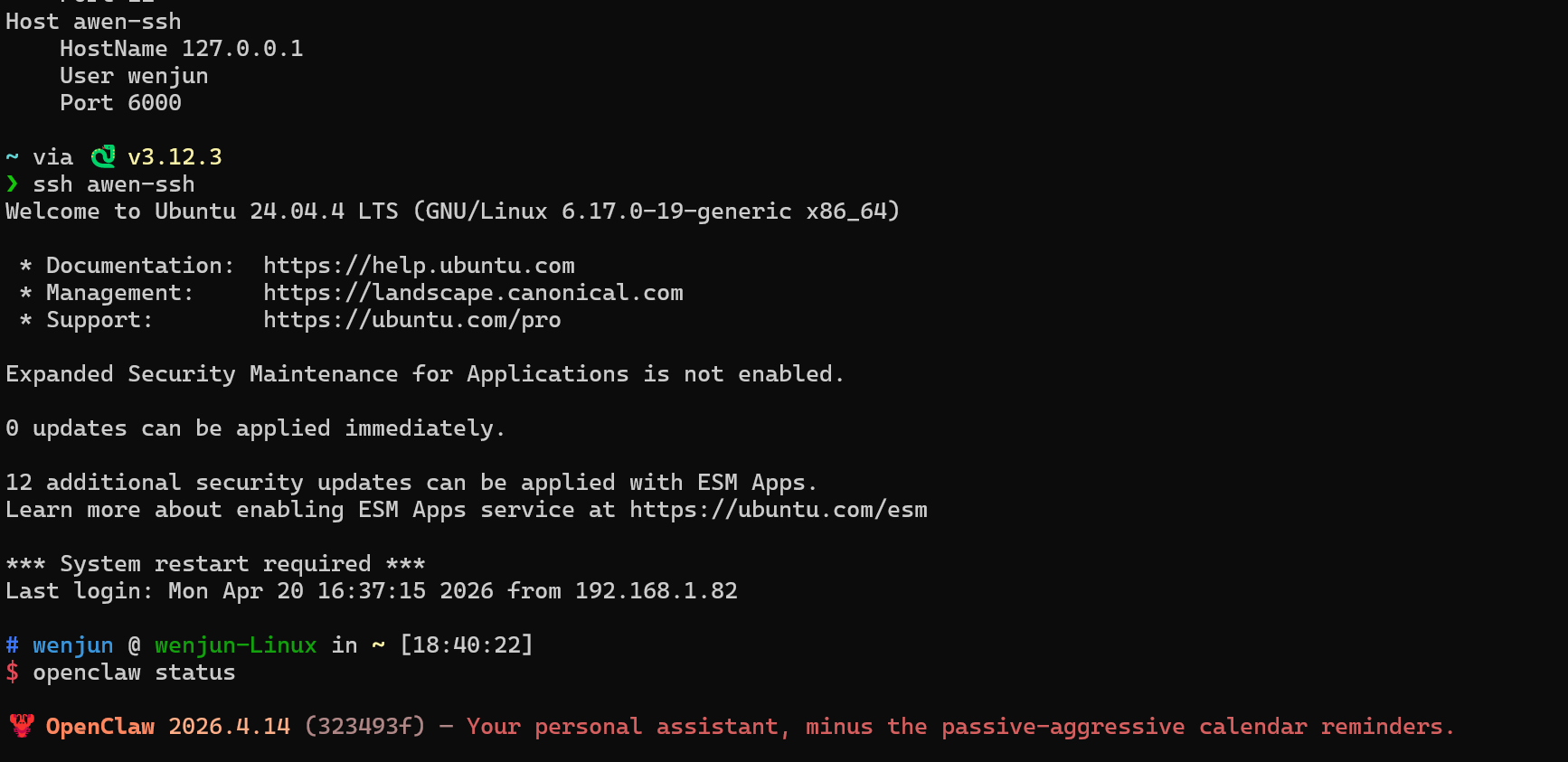
At that moment I realized: relying too much on the LAN to manage local devices is extremely risky. Before upgrading any core service, you must first leave yourself a “back door.”
Why Traditional Remote Solutions Couldn’t Save Me
After it happened, I did a review. Normally I rely on the following paths to remotely manage the devices at home:
- DDNS + port mapping: Since my home network doesn’t have a fixed public IP, I use Cloudflare Tunnel. But it’s also slow.
- Tailscale: A mesh-networking tool, usually convenient. But the service is overseas—slow, and I think it’s not safe.
- IPv6: The IPv6 address the ISP gives me changes often, and IPv6 access quality is unstable in many mobile network environments.
In one word: slow, poor experience.
Solution Comparison: Cloudflare Tunnel vs Tailscale vs FRP
To avoid repeating the mistake, I decided to deploy a “gateway-independent” remote channel on another independent device. Over the next few days I tried the mainstream solutions one by one:
| Solution | Pros | Cons |
|---|---|---|
| Cloudflare Tunnel | Zero config, automatic HTTPS certificates, free | Depends on the cloudflared daemon; fails if the gateway dies; occasional connection instability in China |
| Tailscale | P2P direct connection, flexible networking, free tier is enough | Requires the target device to be online and running the Tailscale client; intranet routing breaks after the gateway goes offline |
| FRP (Fast Reverse Proxy) | Self-hosted server, fully controllable, doesn’t depend on gateway forwarding | Requires maintaining your own public server; requires configuring server and client |
After trying a round, my conclusion was:
- Cloudflare Tunnel and Tailscale are both good products, but what they share is “dependence on the health of the target network itself.” Once the gateway/core device dies, these solutions can do nothing.
- FRP’s advantage is “independence.” As long as the controlled device has power and network (even via a phone hotspot), it can proactively establish a reverse tunnel to the public server—completely without the local gateway’s involvement.
So I decided: deploy frps on an independent server, and deploy frpc on every device that needs remote brick-rescue.
New Problem: FRP Can’t Be Used Directly on a Phone
Once the plan was set, I quickly got frpc running on the NAS and soft router at home. But soon I ran into a thorny problem:
FRP doesn’t officially provide an Android client.
And my most urgent scenario was exactly using my phone to SSH remotely into intranet devices. The existing Android SSH clients (like JuiceSSH, Termius, ConnectBot) don’t support FRP tunnels.
I tried a few workarounds:
- Run Termux on the phone, manually start frpc inside Termux, then connect with an SSH client to
127.0.0.1:6000. It works, but Termux in the background is easily killed by the system—the experience is terrible. - Use a VPN-type tool for global forwarding, but the configuration is complex and not stable enough.
In the end I realized: the most elegant solution is to integrate frpc directly into the SSH client. When you tap to connect to a host, the app automatically starts an frpc visitor tunnel in the background, and once the tunnel is ready, establishes the SSH connection. The whole process is transparent to the user.
Modifying ConnectBot: Giving the Veteran SSH Client FRP Wings
ConnectBot is a veteran open-source Android SSH client with high code quality, complete features, and comprehensive protocol support. Most importantly: it’s open source and can be modified directly with Kotlin.
My modification approach is simple:
|
Core Implementation
Embedded frpc binary
I cross-compiled the Android version of
frpcwith Go and packaged it into the APK aslibfrpc.so. This way Android automatically extracts it tonativeLibraryDirby ABI on install, avoiding Android 10+’s restrictions on executing dynamically extracted binaries.GOOS=android GOARCH=arm64 CGO_ENABLED=0 \
go build -tags noweb -ldflags="-checklinkname=0 -s -w" \
-o libfrpc.so ./cmd/frpcFrpManager— frpc lifecycle managementI created a new
FrpManagerclass, responsible for:- Extracting/locating the frpc binary from the APK
- Dynamically generating
frpc.tomlfrom the host config - Starting the frpc process and polling until the local port is ready
- Automatically stopping the process and deleting the temporary config file on disconnect
Database model extension
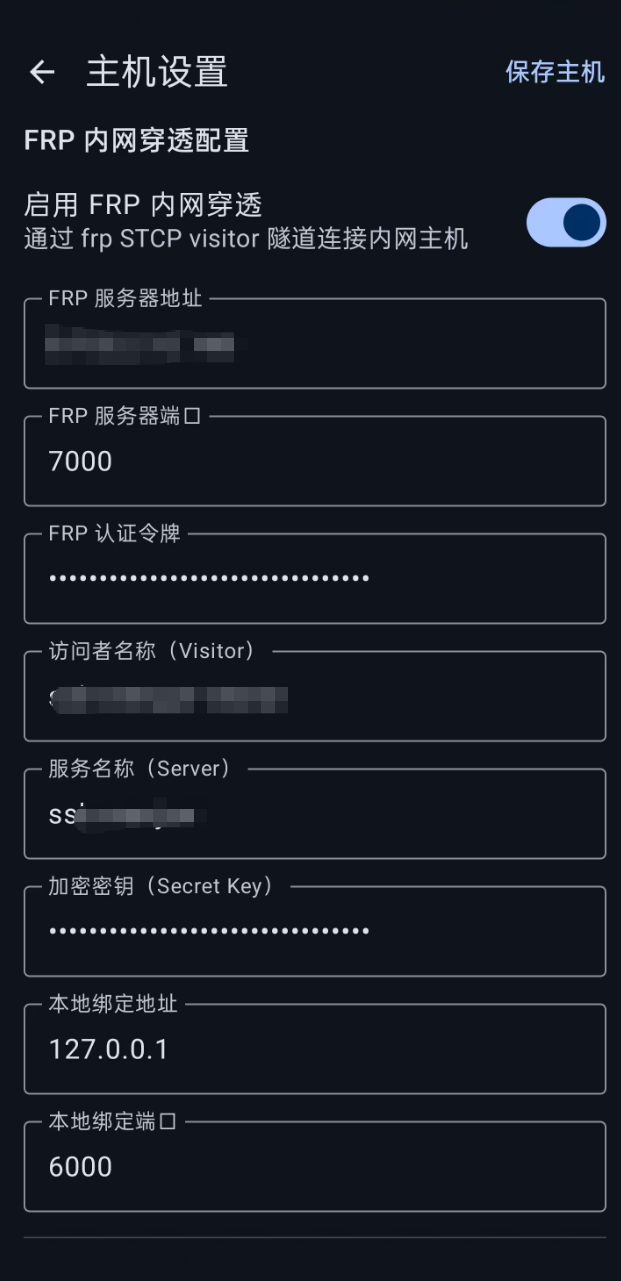
I added FRP-related fields to the
Hostentity:frpEnabled— whether to enable the FRP tunnelfrpServerAddr/frpServerPort— FRP server addressfrpAuthToken— authentication tokenfrpVisitorName/frpServerName— visitor and server namesfrpSecretKey— STCP encryption keyfrpBindAddr/frpBindPort— local bind address and port
SSH transport layer integration
In
SSH.kt‘sconnect()method, iffrpEnabledis detected, first callFrpManager.startVisitor()to establish the tunnel, then switch the SSH connection target fromhostname:porttofrpBindAddr:frpBindPort. Automatically callstopVisitor()on disconnect.Config import/export
Support batch-importing host configs from a JSON file, configuring the FRP parameters of all intranet devices at once:
{
  "hosts": [
    {
      "nickname": "Soft Router",
      "protocol": "ssh",
      "hostname": "127.0.0.1",
      "port": 22,
      "username": "root",
      "frpEnabled": true,
      "frpServerAddr": "your-server.com",
      "frpServerPort": 7000,
      "frpAuthToken": "your-token",
      "frpVisitorName": "router-visitor",
      "frpServerName": "ssh-router",
      "frpBindAddr": "127.0.0.1",
      "frpBindPort": 6001
    }
  ]
}
User Experience
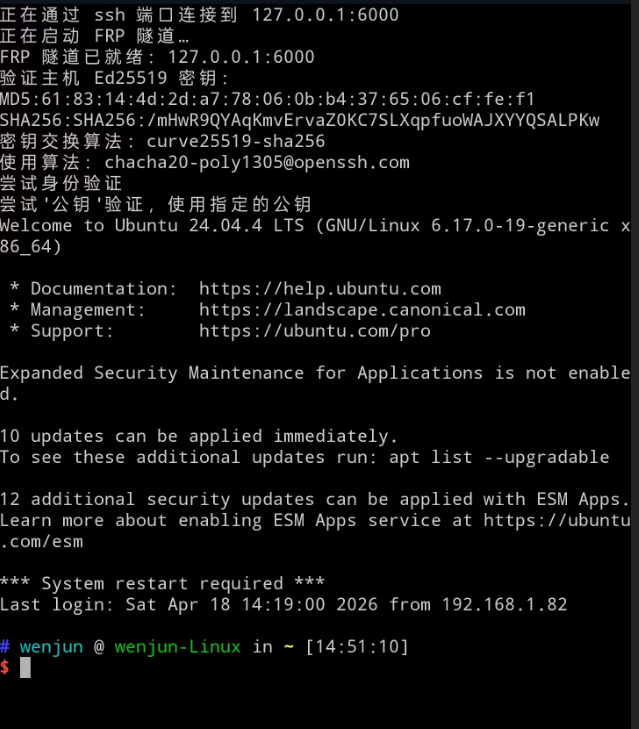
After the modification, the overall experience is very smooth:
- Open the app and tap “Soft Router” in the host list
- The terminal first prints
Starting FRP visitor tunnel... - About 1–2 seconds later it shows
FRP tunnel ready on 127.0.0.1:6001 - Then it automatically establishes the SSH connection; after entering the password you can operate normally
- When you exit the session, the frpc process automatically stops without using background resources
Screenshots:
Server-Side Configuration Reference
The whole solution needs three parts working together:
1. FRP server (frps)
Deployed on a server with a public IP:
|
2. Controlled-side frpc (soft router/NAS)
|
3. Phone-side ConnectBot + FRP
As shown in the JSON config above, each host uses a different frpBindPort (6000, 6001…) to avoid conflicts.
Why This Solution Is More Reliable
Now look back at the original failure scenario:
- An OpenClaw upgrade takes down the gateway → no problem; frpc runs on the NAS, and the NAS connects directly to the optical modem for dial-up, independent of the gateway.
- If the NAS also dies → frpc on the soft router is still there; you can SSH in to fix it.
- Feed the device network via a phone hotspot → as long as frpc can reach the public network, it can establish a tunnel.
FRP’s core advantage is “reverse connection”: the controlled device proactively initiates a connection to the server—no public IP needed, and no port mapping by the local gateway needed. As long as there’s a link that can get out to the internet, it can be accessed remotely.
The Project Is Open Source
This customized ConnectBot is open-sourced on GitHub:
⚠️ Not published on Google Play; APK downloads are provided only in GitHub Releases.
If you have a similar need—managing intranet devices over SSH via an FRP tunnel on your phone—you can download and use it directly, or customize it yourself based on the code.
Summary
This “brick-rescue” experience made me deeply appreciate:
- Before upgrading any core infrastructure, first ensure you have an independent remote channel. Don’t put all your remote eggs in one basket.
- Self-hosted FRP suits the “brick-rescue” scenario better than Cloudflare Tunnel / Tailscale, because its reverse-connection mechanism doesn’t depend on the health of the local network topology.
- The lack of an FRP client on mobile is a pain point, but modifying ConnectBot elegantly solves it, with an experience close to native.
My architecture now looks like this:
|
Next time I upgrade OpenClaw, I can calmly sit in a coffee shop, pull out my phone, open ConnectBot, connect to the soft router, and troubleshoot step by step—rather than rushing home anxiously in the cold wind.
评论
0 条评论