此前我们介绍过如何通过 vnc 的方式连接虚拟机进行操作系统的安装
https://awen.me/archives/376.html
这篇文章,我们讨论下如何通过控制台纯文本模式去安装一个 centos7操作系统
使用平台
操作系统:centos7.3
参考命令
virt-install \
--name centos7 \
--ram 4096 \
--disk path=/vm-images/vm1.img,size=30  \
--vcpus 2 \
--os-type linux \
--os-variant rhel7 \
--network bridge=br0 \
--network bridge=br0 \
--graphics none \
--console pty,target_type=serial \
--location 'http://mirrors.aliyun.com/centos/7/os/x86_64/' \
--extra-args 'console=ttyS0,115200n8 serial'
|
配置说明
–name 指定虚拟机的名称
–ram 指定Virtual Machine
–disk的内存量path = xxx,size = xxx
‘path =’⇒指定虚拟机
size =’⇒指定虚拟机的磁盘数量
–vcpus 指定虚拟CPU
–os-type 指定GuestOS 的类型
–os-variant 指定GuestOS的类型 - 可能确认列表中使用以下命令osinfo-query os
–network 指定虚拟机的网络类型
–graphics 指定图形的类型。如果设置为“无”,则意味着非图形。
–console 指定控制台类型
–location 指定安装的位置,其中from
–extra-args 指定在内核中设置的参数
得到的结果
[root@localhost ~]# virt-install \
> --name centos7 \
> --ram 4096 \
> --disk path=/vm-images/vm1.img,size=30  \
> --vcpus 2 \
> --os-type linux \
> --os-variant rhel7 \
> --network bridge=br0 \
> --network bridge=br0 \
> --graphics none \
> --console pty,target_type=serial \
> --location 'http://mirrors.aliyun.com/centos/7/os/x86_64/' \
> --extra-args 'console=ttyS0,115200n8 serial'

Starting install...
Retrieving file vmlinuz...                                                                  | 5.1 MB  00:00:04
Retrieving file initrd.img...                                                               |  41 MB  00:00:41
Creating domain...                                                                          |    0 B  00:00:00
Connected to domain centos7
Escape character is ^]
……
|
然后这样会去互联网下载你也可以这样
virt-install \
--name node-server-4 \
--ram 1024 \
--disk path=/vm-images/node-server-4.img,size=30  \
--vcpus 2 \
--os-type linux \
--os-variant rhel7 \
--network bridge=br0 \
--network bridge=br0 \
--graphics none \
--console pty,target_type=serial \
--location /vm-iso/CentOS-7-x86_64-DVD-1611.iso \ #替换成本地的镜像文件
--extra-args 'console=ttyS0,115200n8 serial'
|
加载完之后会出现如下界面,选择2,从文本模式安装
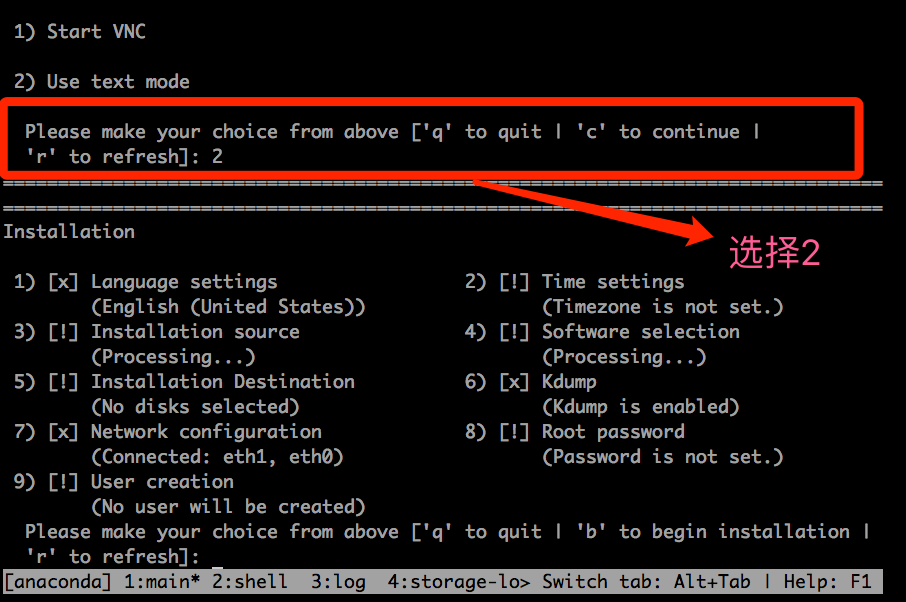
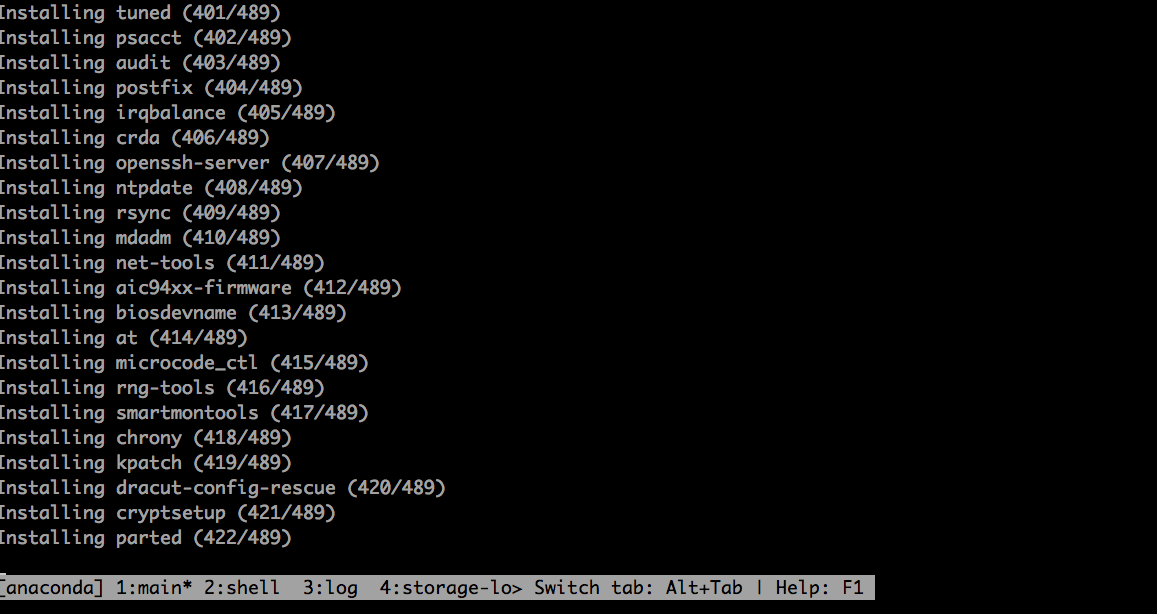
然后根据提示选择,标识!号的是需要设置的都有对应的数字编号,按 q 退出,按 c 继续,按 b 进行下一步,设备的内容和图形化安装是一样的,配置磁盘、选择安装的系统类型,设置 root 密码,配置网络等等,下图是选择完后进行安装的界面
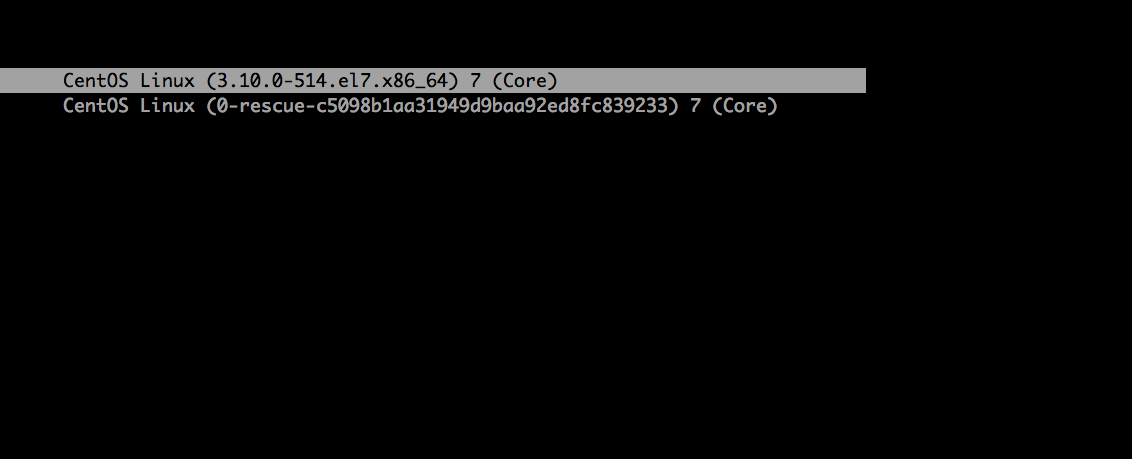
全部安装完后启动也是在文本模式启动
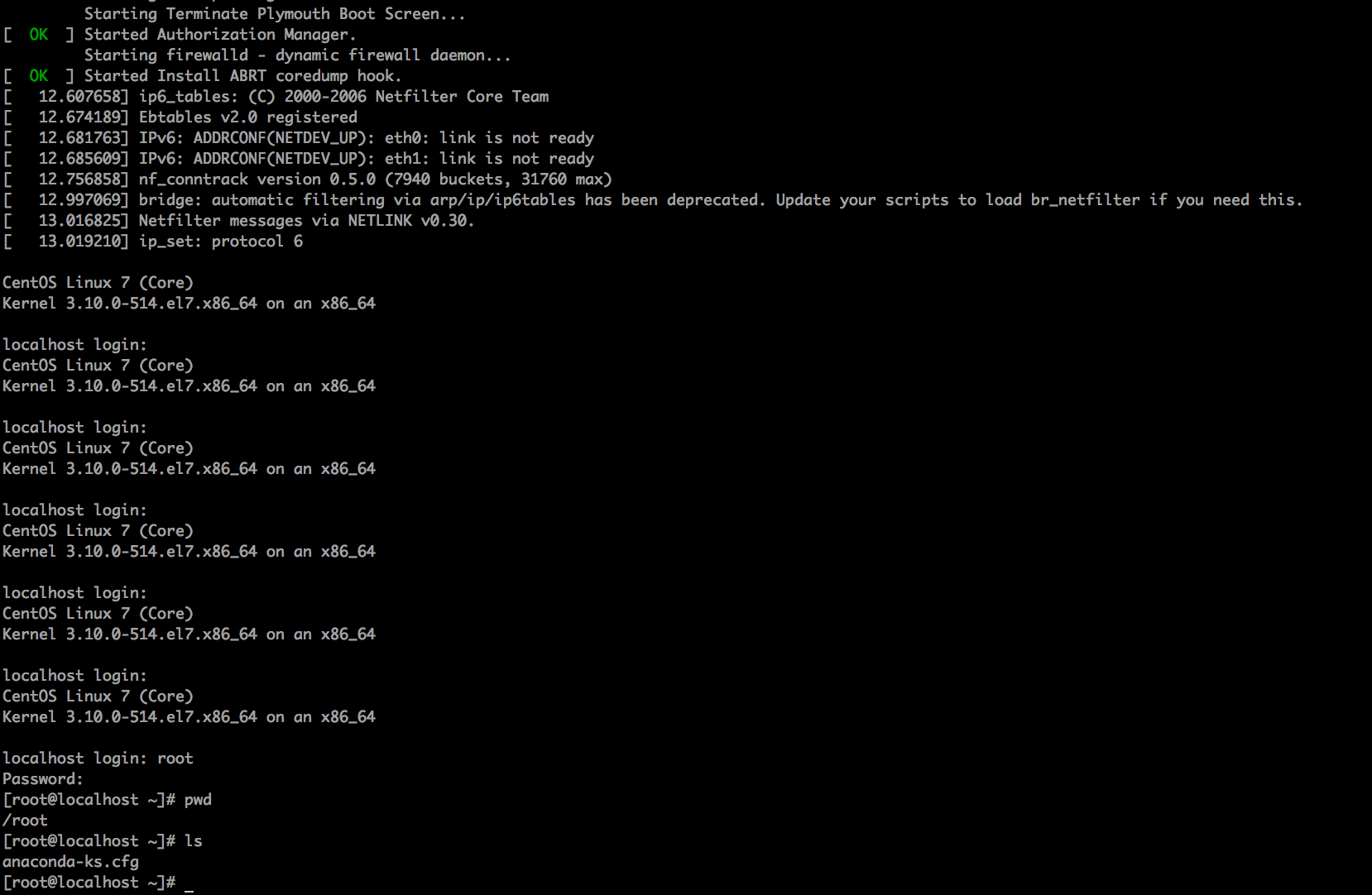
进入 login 界面
评论
0 条评论